Payment Approval

• Open inntactFinancial
→ The user must have the "Warehouse" option to be shown in VISA selection and to approve a record for payment (refer to last page regarding warehouse option)

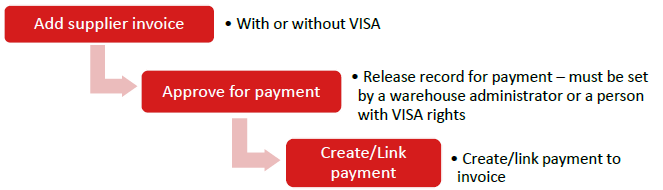

I. Add supplier invoice
1. Add supplier invoice in Accounts Payable (comes from the warehouse). Once the TRANSFER → CREDITORS button is clicked, open inntact Financial → Creditors, click on the “Invoices (Alt+R)” button and then on the “Select PDF” button (bottom/right).
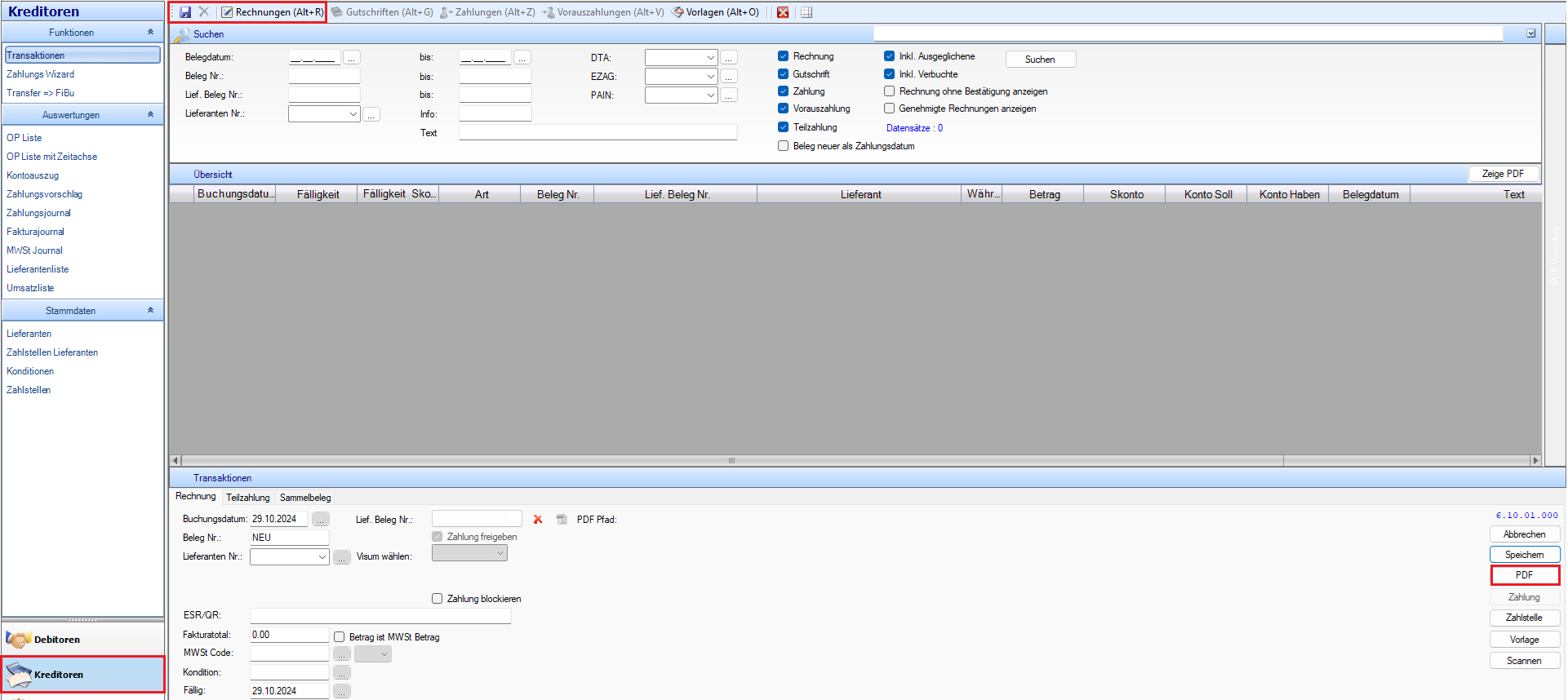
1.1 Add invoice window will open
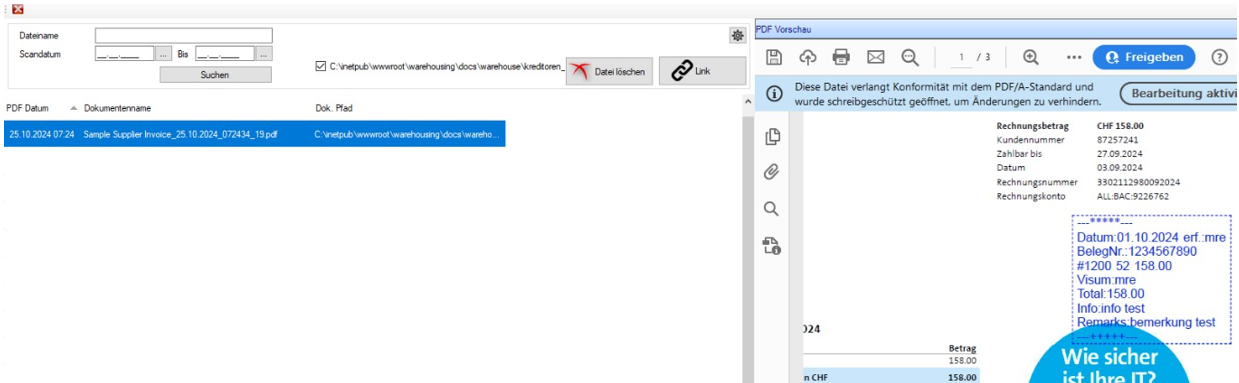
2. Choose PDF invoice
3. Invoice is displayed on the right as a PDF view
4. The invoices to be used are displayed on the left
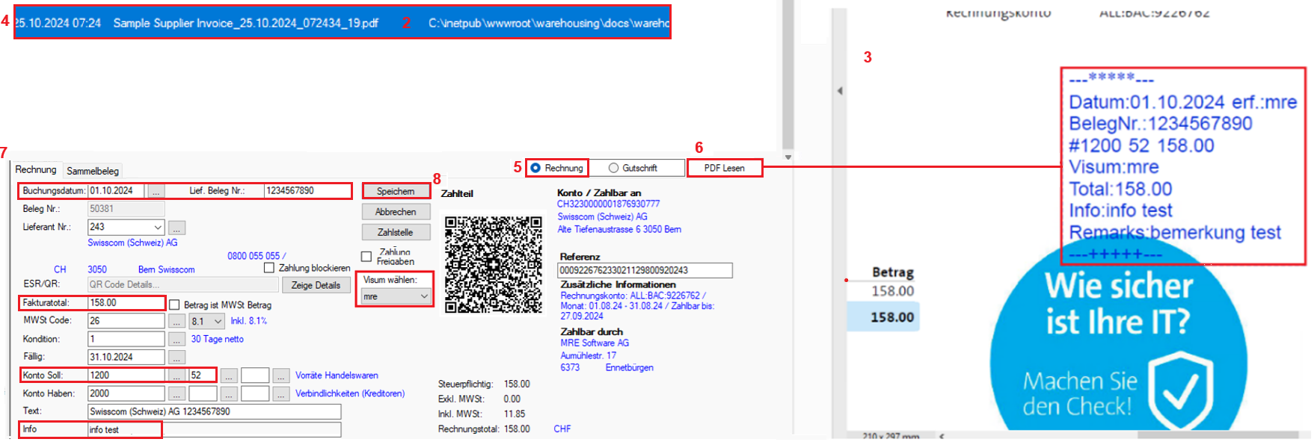
5. Select Invoice or Credit Note
6. Click the "Read PDF" button, then the QR and stamp information will be read.
 We have a service that will read automatically the stamp/QR details.
 In the background this will get the stamp/QR details and displayed on the fields.
 If stamp/QR details is not read yet, user can use the “Read PDF” button.
7. User can still edit/add the fields
8. Supplier invoice can be saved with or without visa
 Screenshot below refers to points 2 – 8
II. Approve for Payment
1. If supplier invoice is saved with VISA, proceed as follows:
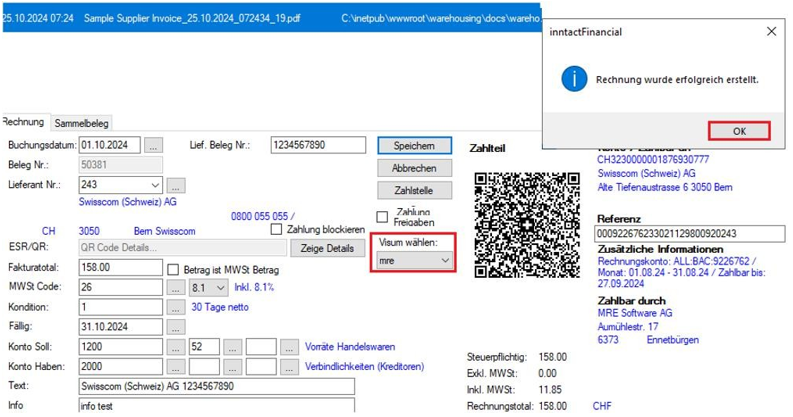
- Approve button in email
- VISA employee will receive an email regarding invoice for approval.
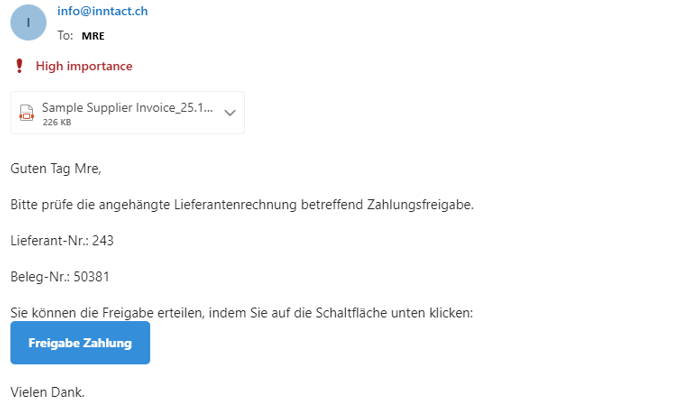
- VISA employee can approve using the Approve button within the email. Once button is clicked, successful status is shown:

Checkbox “Approve for payment” within inntact - AP is automatically checked.
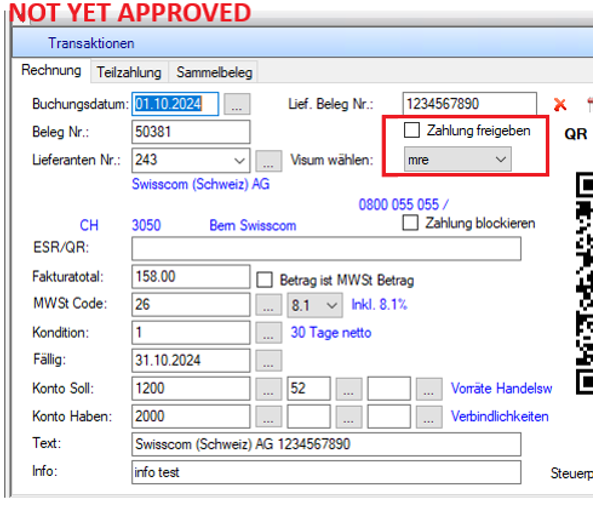
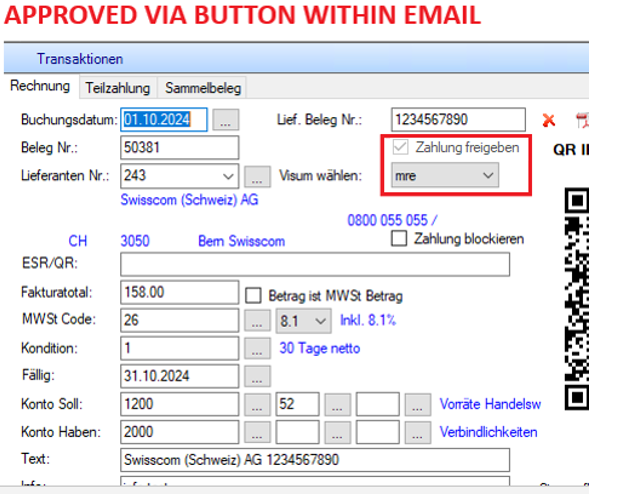
- Approve within inntact
- Supplier invoice can be approved within inntact by checking the checkbox “Approve for payment”.
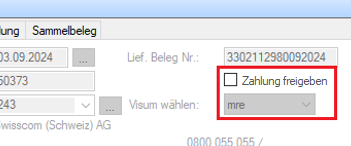
- The checkbox can be set/checked by VISA authorized person or admin user
- Admin user
- Can set the checkbox «Approve for Payment» for all invoices (no restrictions)
- Selected/assigned VISA users
- Only his invoices to approve are displayed in AP transaction overview
- If invoice is not yet approved for payment, other fields except the «Approve for Payment» checkbox is disabled.
- Payment is not possible within AP transactions and also not available in the payment wizard.
2. If supplier invoice is saved without VISA, the checkbox “Approve for payment” is automatically set.
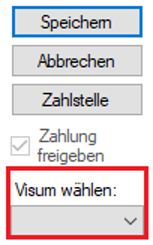
- Invoice is saved without Visa and displayed in AP transactions overview.
- Payment is possible within AP transactions and should be available in the payment wizard.
III. Create/Link Payment
Once checkbox «Approve for Payment» is set:
- Possible to create/link payment:
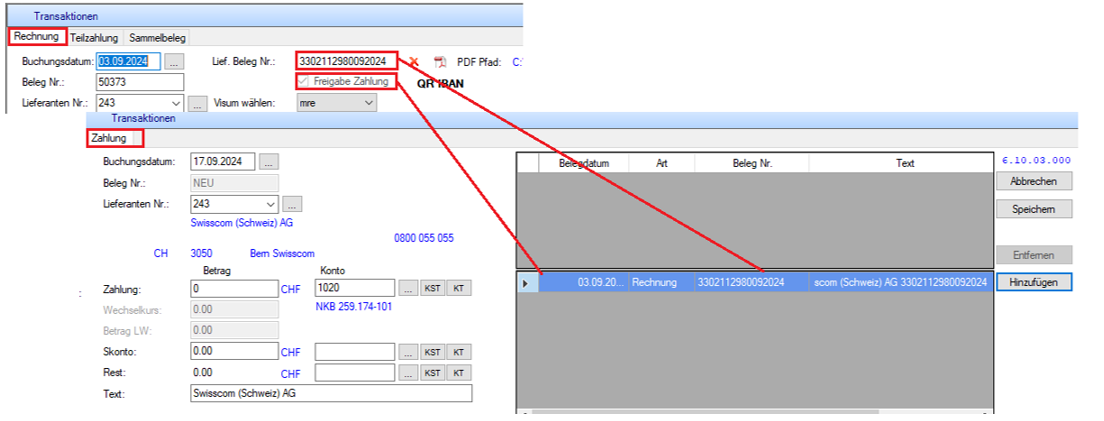
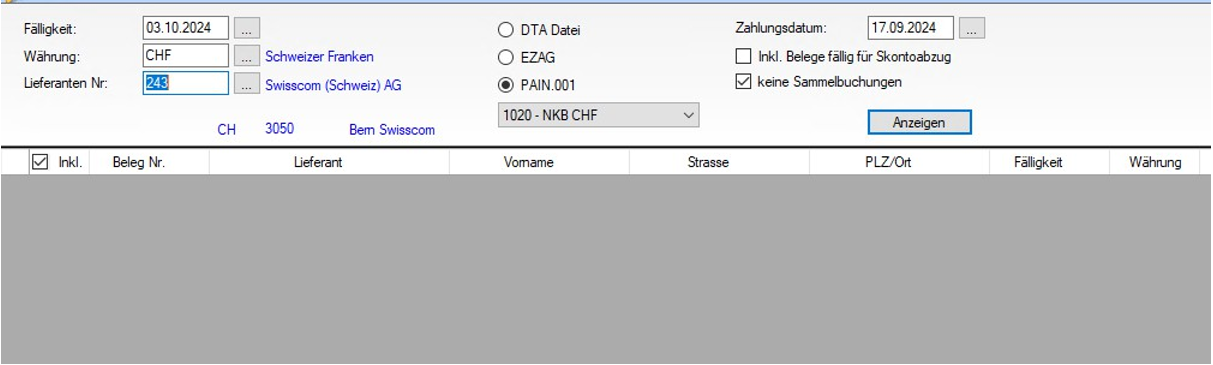
- Available as well in Payment Wizard:

- Otherwise, not possible to create/link payment:
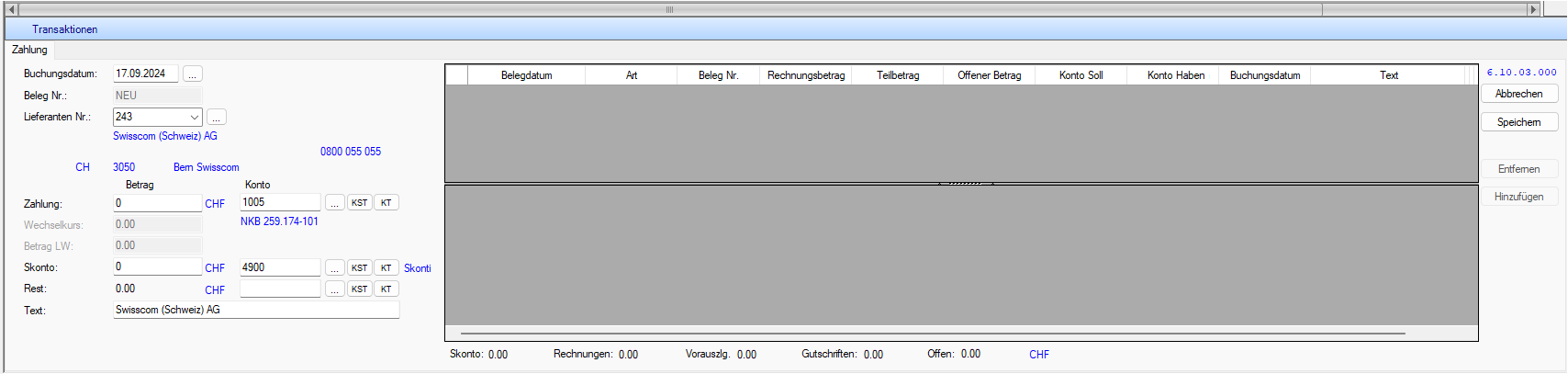
- Also not displayed in the payment wizard:

I. Warehousing Admin
 Will be set by MRE
 Will be shown within VISA selection
 All invoices are shown within AP Transaction overview
 Can approve all invoices (even if he/she is not the selected VISA)
II. VISA User with Limited Access
 Will be set by MRE
 Will be shown within VISA selection
 If the user does not have a license for the inntact Financial module
 MRE can set this up so that only the Accounts Payable module is displayed and only their respective invoice for approval is visible.
 Example view:
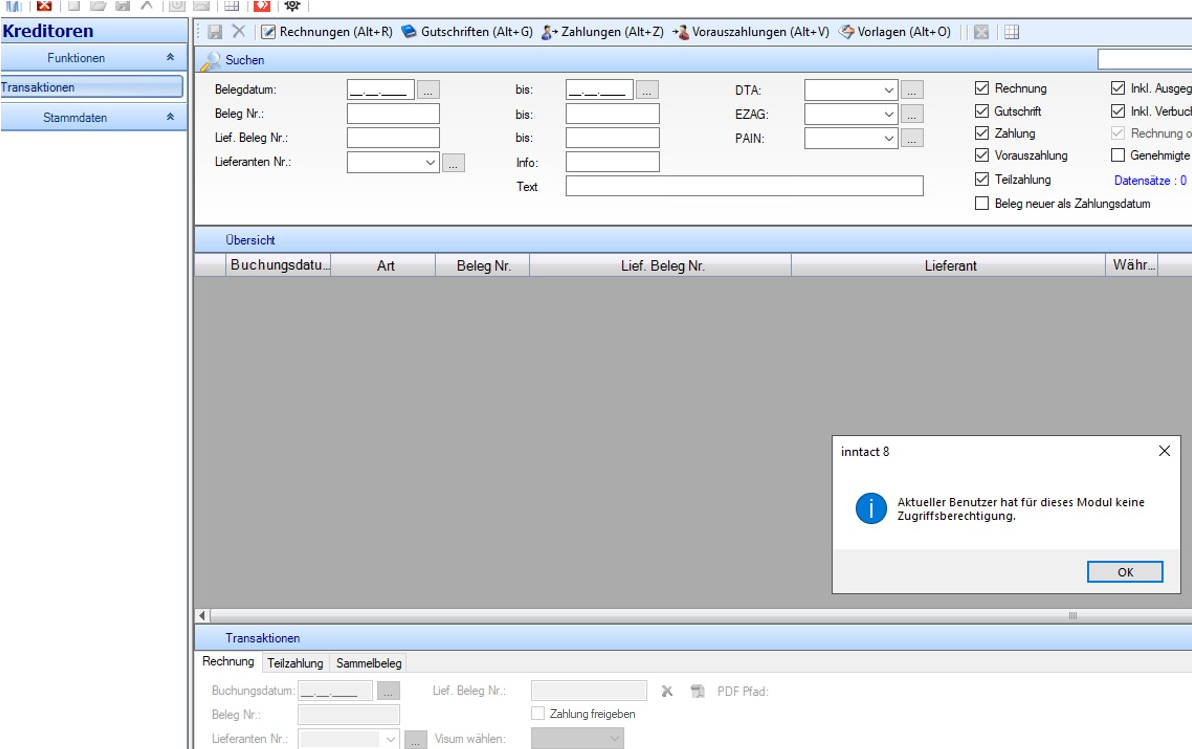
- User cannot add credits/prepayments, view reports, etc. The message shown above will be displayed.
- The user is only allowed to add invoices and approve invoices.